PNG to JPG: Reduce Photo File Size and Handle Transparency
Convert PNG photos to JPG with the right quality setting and understand why transparent areas become white.
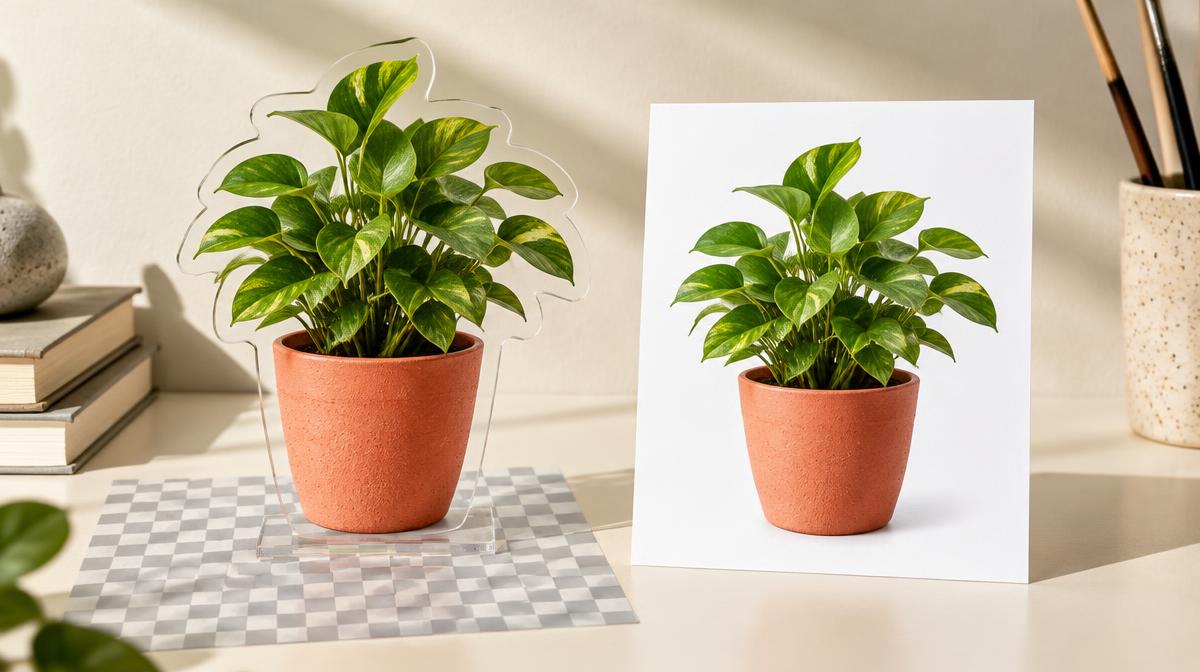
A PNG photo can be larger than you need for an email, website or application form. Converting it to JPG may create a more practical copy, but there is one important change to understand first: JPG cannot preserve transparency. Before converting, decide whether the image is an ordinary photograph or a graphic that relies on transparent edges.
What happens to transparent pixels?
Resize Imager’s PNG-to-JPG converter paints a white background before drawing the source image. Fully transparent regions become white, and partially transparent edges blend into that white surface. This is intentional: JPG requires color information everywhere in the image and has no alpha channel.
When PNG to JPG is a good choice
- The image is a photograph with no transparency you need to keep.
- The receiving form accepts JPG and has a strict file-size limit.
- The final image will be displayed on white and a flattened background is acceptable.
- You need a broadly compatible photo file for a recipient’s application.
JPG is less suitable for small text, pixel art and high-contrast diagrams if compression damages their edges. For those images, compare the exported file carefully or keep PNG if the destination allows it. A smaller file is useful only when the important content remains clear.
How to convert and check the result
- 1Open PNG to JPG and upload your original PNG.
- 2Review the picture, especially transparent corners and thin edges.
- 3Choose a JPG quality setting as a starting point. Moderate quality may be sufficient for a photo, but there is no universal setting.
- 4Create and download the JPG, then inspect its file size and appearance.
- 5If the file is still too large, reduce dimensions in the main image tool when the destination permits it.
Compare quality at the size people will actually see
Look at the full image at its intended display size, then inspect difficult areas at 100% zoom. Watch for blocky textures, halos around dark outlines and smeared lettering. Raising quality can reduce visible artifacts, but it also commonly increases bytes. Start from the original PNG for each trial instead of recompressing a previously exported JPG.
| Your image | Recommended approach |
|---|---|
| Camera photo stored as PNG | Try JPG; compare quality and bytes |
| Transparent logo | Keep PNG unless a white background is wanted |
| Screenshot with small text | Inspect JPG edges closely; PNG may be safer |
| Photo that is already a compact JPG | Avoid an unnecessary conversion chain |
Why conversion may not be enough
A large pixel grid still takes data to store. If a photo is thousands of pixels wide but only displayed as a small card, converting format alone may leave it heavier than necessary. Choose appropriate dimensions, then tune compression. Cropping can also remove unwanted content, but it should not cut away information required by a document portal.
Frequently asked questions
Can I restore transparency from the new JPG?
Not by converting it back to PNG. The white surface has become part of the image. Return to the original transparent PNG.
Will a PNG always become smaller as JPG?
No. The result depends on content, dimensions and quality. JPG often helps with photographs, but you should measure the downloaded file rather than assume a specific percentage saving.
Sources & further reading
Try it yourself.
All 26 tools are ready when you are.
Keep reading
JPG to PNG: What Changes, What Does Not, and When to Convert
Understand why JPG-to-PNG conversion does not restore lost detail or automatically remove a background.

Resize vs. Compress: How to Reduce Image Size the Right Way
Learn when to change pixel dimensions, when to lower file size, and how to combine both without stretching your photo.