How to Reduce an Image Below 100 KB, 200 KB or 1 MB
A careful workflow for meeting upload limits using dimensions, format and quality—with no guaranteed-size shortcuts.
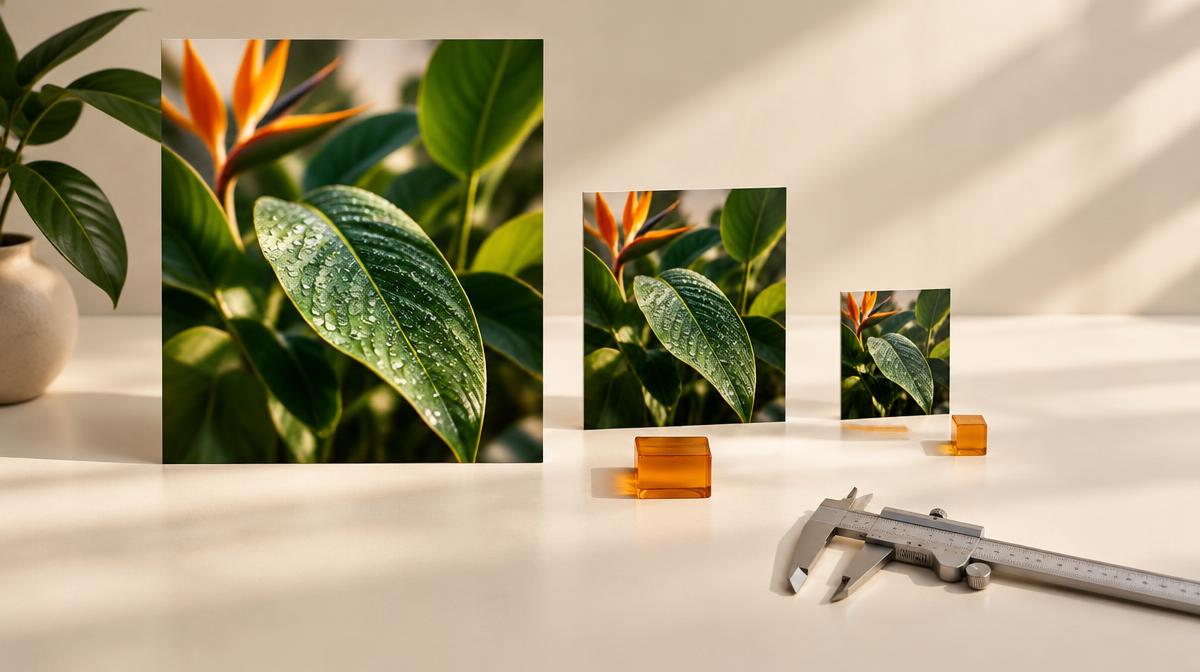
Job applications, account forms and document portals often reject images that exceed a file-size limit. The reliable fix is not a universal quality percentage. It is a short cycle of checking requirements, exporting a smaller copy and measuring the result. A portrait with a plain background and a detailed outdoor photo can produce very different file sizes at identical settings.
Read the upload requirements before changing anything
- Maximum file size: note whether the site says KB, MB or an exact byte limit.
- Accepted formats: some portals accept JPG but reject PNG or WebP.
- Required dimensions: a file can be small enough and still fail a width or height check.
- Content restrictions: document photos may need an uncropped face, signature or readable identification number.
KB and MB labels can be interpreted differently by software. If a file only just meets the displayed limit, leave a little headroom rather than aiming at the exact boundary. Treat 100 KB, 200 KB and 1 MB as example limits; the receiving website sets the actual rules.
Start with format, then adjust quality
For an ordinary photograph without transparency, JPG is a practical starting point when the portal accepts it. A PNG photograph may be unnecessarily heavy because it retains pixel information losslessly. Use PNG to JPG when the original is PNG and a white background is acceptable. Do not convert a transparent logo if the destination needs transparent edges.
- 1Upload the photo to the main image tool and select Reduce file size.
- 2Select an accepted output format. Start with the Balanced preset as a trial, not a guaranteed target.
- 3Read the new file size. If it exceeds the limit, lower quality gradually.
- 4Check the preview for blocky areas, blurred lettering and broken fine edges.
- 5Download the result and inspect its actual file size before submitting it.
If compression alone does not meet the limit
Switch to Resize dimensions and reduce width and height if the portal permits it. Keep the aspect ratio locked. A phone photo may contain thousands of pixels across even when the form needs a much smaller preview. Removing unnecessary pixels often helps more than aggressively lowering quality while retaining a huge image.
| Example limit | Sensible first check | If the file is still too large |
|---|---|---|
| 100 KB | Verify minimum dimensions and readable details | Reduce permitted dimensions; inspect text closely |
| 200 KB | Try JPG with moderate compression | Lower quality in small steps or resize |
| 1 MB | Check whether the original is an oversized PNG | Try an accepted photo format and appropriate dimensions |
Protect readability in document images
For a signature or scanned form, inspect the thinnest strokes and smallest characters. A very small file that cannot be read is not a successful export. If the destination requires PNG, changing a JPG quality slider will not solve the constraint; reduce permitted dimensions or use a workflow compatible with that format. Keep required margins and document content intact.
Frequently asked questions
Why did my image fail after I reduced it?
The site may also check format, dimensions or content. Re-read the complete requirements and make sure you uploaded the new file rather than the original.
Can I make any photo 100 KB without losing quality?
No. A tight limit can require fewer pixels or visible quality loss. Retain the detail the receiving service needs and do not rely on a claim of identical quality at every size.
Sources & further reading
Try it yourself.
All 26 tools are ready when you are.
Keep reading

Resize vs. Compress: How to Reduce Image Size the Right Way
Learn when to change pixel dimensions, when to lower file size, and how to combine both without stretching your photo.
JPG vs. PNG vs. WebP: Which Image Format Should You Use?
Compare photo quality, transparency, compatibility and file size before choosing an image format.