How to Convert HEIC to JPG for iPhone Photo Uploads
Make a compatible JPG copy of a HEIC photo, choose sensible quality, and keep your original for future edits.
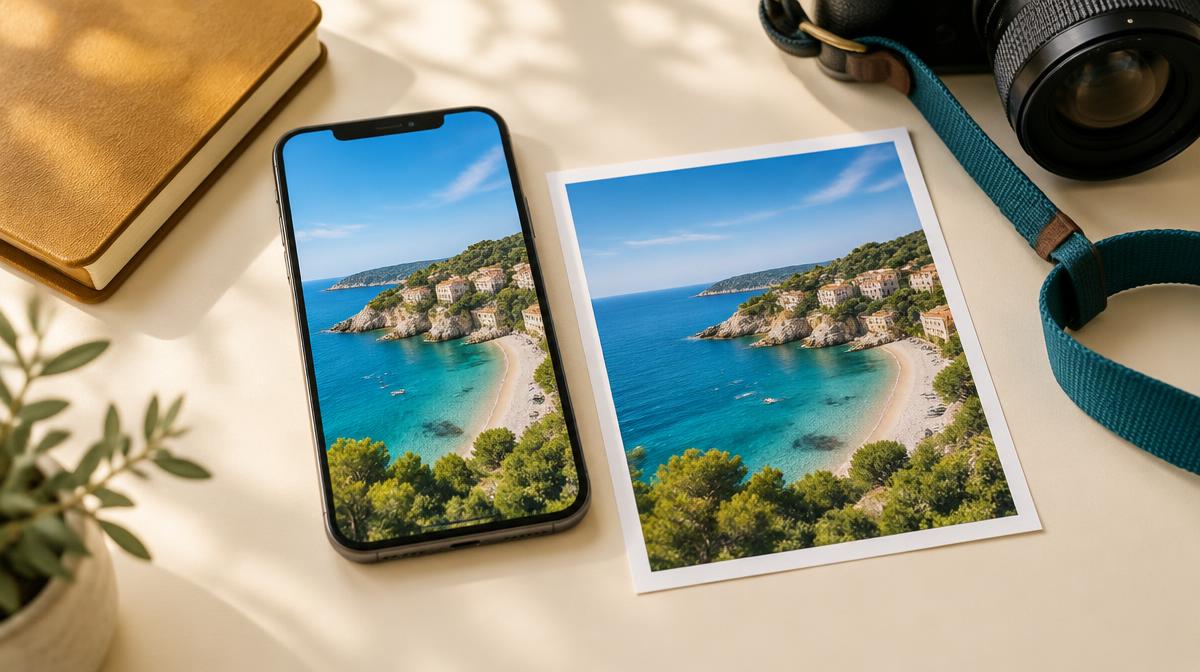
You select an iPhone photo and the receiving app refuses to open it. The problem may be the format rather than the picture. Many Apple devices can capture photos using HEIF, often stored with a .heic extension. A JPG copy can help when a website, editor or recipient does not support that photo format.
HEIC, HEIF and JPG in plain language
HEIF is an image file format used for efficient photo storage. Apple describes HEIF photos as offering better compression than JPEG at comparable visual quality. HEIC is a common filename extension you may encounter for these images. HEVC refers to video encoding; a HEIC-to-JPG photo converter is not a video converter.
JPG is useful for compatibility, not as an automatic quality improvement. Conversion decodes the source and creates a new JPEG representation. The JPG may be larger than the HEIC, and lossy encoding can alter fine details. Keep the original photo if you may need it later.
Convert a HEIC photo with Resize Imager
- 1Open the dedicated HEIC to JPG converter.
- 2Select the HEIC or HEIF photo. Choose the actual image file rather than a screenshot of it.
- 3Set JPG quality. The available range is 10–100; begin toward the higher end when detail matters.
- 4Convert the image and wait for the result.
- 5Download the JPG and check orientation, colors, dimensions and file size before sharing it.
Choose quality for the destination
For a family photo archive or a detailed product image, prioritize a clean result. For an upload with a size restriction, you may need a lower-quality copy or smaller dimensions. Quality values are not measurements of retained detail, and the same setting produces different file sizes for different pictures.
Inspect faces, hair, textured fabric and smooth skies. Do not assume that a format conversion preserves every metadata field, color profile or special capture feature. A JPG copy should be treated as a conventional still image, not a replacement for all information in the original Apple photo.
If the JPG is still too large
Open the converted file in Resize Imager. Choose dimensions that meet the receiving site’s requirements and adjust file-size reduction if necessary. Converting to JPG fixes format compatibility; it does not guarantee compliance with an arbitrary 200 KB or 1 MB limit.
Changing future iPhone captures
On supported iPhones, Apple’s camera format settings offer High Efficiency and Most Compatible options. Most Compatible uses JPEG for photos. This changes future captures; it does not rewrite every existing photo in your library. Availability and exact settings depend on the device and software version, so follow Apple’s current guidance for your model.
Troubleshooting and common questions
Why does one HEIC fail while another works?
HEIC files can vary by source and encoding features. If a specific photo cannot be decoded, try exporting a conventional JPEG copy from the app that created it. Keep the original and avoid merely changing its extension.
Does converting to JPG make my photo clearer?
No. It makes a compatible representation of the available source. It cannot restore missing focus or recover detail from a small preview.
Sources & further reading
Try it yourself.
All 26 tools are ready when you are.
Keep reading

Resize vs. Compress: How to Reduce Image Size the Right Way
Learn when to change pixel dimensions, when to lower file size, and how to combine both without stretching your photo.
How to Reduce an Image Below 100 KB, 200 KB or 1 MB
A careful workflow for meeting upload limits using dimensions, format and quality—with no guaranteed-size shortcuts.