How to Add Readable Text to a Thumbnail Without Clutter
Build a clear 1280 × 720 thumbnail with focused wording, balanced placement and text that remains legible when reduced.
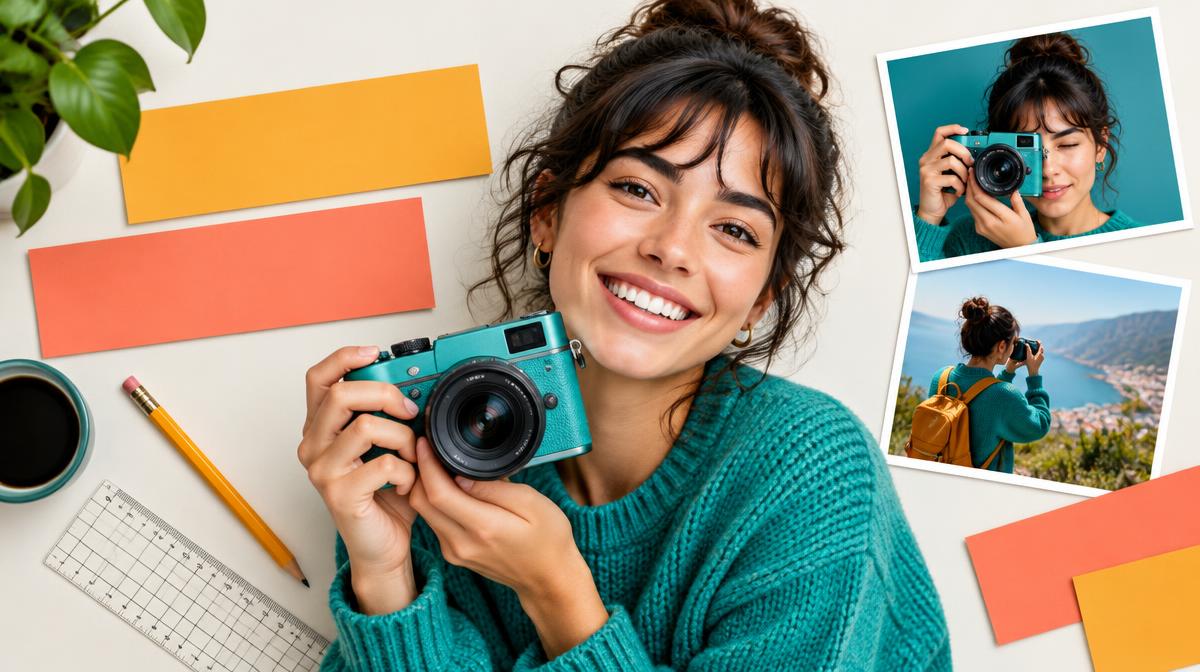
A thumbnail has to communicate quickly in a small space. Adding more words does not necessarily make the message clearer. Start with one main subject and a short headline that complements the picture, then check the design at the size viewers will actually encounter. A beautiful full-size image can become confusing when reduced to a tiny preview.
Decide what the image should say
Choose the main point before opening the editor. A practical headline might identify the result, question or topic; it should not repeat every word of a long video title. Short phrases leave room for the photograph and make it easier to use larger lettering. There is no exact word count that guarantees clicks.
The visual should match the actual content. Avoid a dramatic claim or misleading photo simply because it attracts attention. Clear expectations are more useful than a thumbnail that promises a result the video or article does not deliver.
Create the thumbnail in Resize Imager
- 1Open the Thumbnail Text Editor. The canvas is 1280 × 720, a 16:9 shape.
- 2Choose a background photo or plain color. Use a source image that has enough detail at the canvas size.
- 3Add the main headline and, only if needed, a supporting subtitle.
- 4Set font, size, alignment and vertical position. Keep the main subject visible.
- 5Adjust outline and background darkening to separate the text from the photo.
- 6Download JPG or PNG, then view the finished image at a small preview size.
Make the headline visually distinct
Text needs separation from the picture behind it. A light headline over a bright sky may disappear, while a dark headline over a dark jacket can be equally hard to read. An outline or darker background can help, but heavy outlines and excessive darkening can make the image look cramped. Compare the whole composition after each change.
Use a font that remains clear when reduced. Very thin strokes and elaborate letterforms can lose definition. Increase size only as far as the available space allows; if the headline crowds the subject, shorten the wording before trying to force everything into the frame.
Keep a simple hierarchy
| Element | Its job | Common problem |
|---|---|---|
| Main subject | Make the topic recognizable | Hidden behind oversized text |
| Headline | Deliver one clear message | Too many words competing for attention |
| Subtitle | Add essential supporting detail | Repeats the headline |
| Background | Support the focal point | Busy texture overwhelms lettering |
Test the downloaded image, not just the editor
The editor does not include a separate small-preview or contrast-testing mode. Open the downloaded thumbnail and reduce its displayed size to something similar to the destination’s feed. Can you still identify the subject and read the important words? Check on a phone as well as a large screen.
Keep text and faces away from vulnerable edges. Different destinations may crop images or overlay controls, badges or durations. The editor’s 1280 × 720 canvas is a design format, not a promise that every platform will display every pixel. Verify the receiving platform’s current requirements.
Choose an output format
JPG can be practical for a photo-heavy thumbnail. PNG may help with crisp graphic elements but can produce a larger file. Check size limits and accepted formats before uploading. If you need to reduce the exported file, use Resize Imager and inspect the text again after compression.
Frequently asked questions
Will bigger text always improve results?
No. Oversized lettering can hide the subject and remove context. Aim for legibility and balance rather than filling all available space.
Should I add a subtitle?
Only if it supplies information the headline and photo cannot convey. Remove it if the design becomes cluttered or the subtitle is unreadable at preview size.
Sources & further reading
Try it yourself.
All 26 tools are ready when you are.
Keep reading

Resize vs. Compress: How to Reduce Image Size the Right Way
Learn when to change pixel dimensions, when to lower file size, and how to combine both without stretching your photo.
How to Reduce an Image Below 100 KB, 200 KB or 1 MB
A careful workflow for meeting upload limits using dimensions, format and quality—with no guaranteed-size shortcuts.